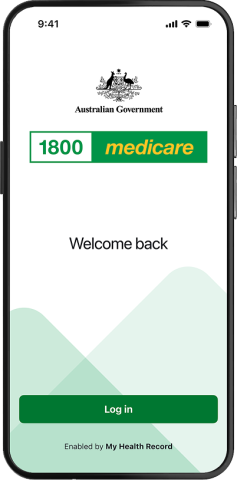
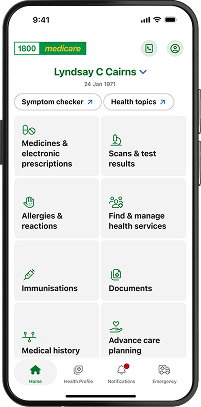
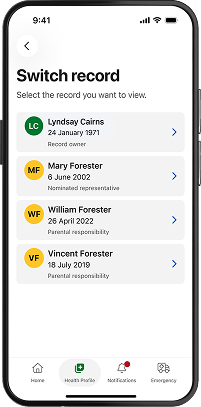
1800MEDICARE banner: Access key health information, seek trusted advice, and connect with care, all from the palm of your hand; with 3 phone screens showing features of the 1800MEDICARE app.

From 1 January 2026, my health app will be renamed 1800MEDICARE.

To make sure you don’t miss the update, turn on notifications from your app settings and enable automatic updates in your app store from your device settings.

1800MEDICARE app

The 1800MEDICARE app is a secure and convenient way to view key health information that you, your healthcare providers or representatives have uploaded to My Health Record.

It also gives you access to electronic prescriptions and your Active Script List. It also has other great features to:

  • find and book a health service
  • search a symptom checker
  • access to Medicare information as well as enrolment and claiming services.

It’s fast, easy, and secure – and you can access and share it all from the palm of your hand.

Available for mobile and tablet from 1 January 2026.

Get started with the 1800MEDICARE app

  1. You will need a myGov account linked to My Health Record

    Note: If you already have a myGov account, you don't need to create a new one. To learn how to link a myGov account to My Health Record, see Step 1 on the Set up your record online page.

  2. Search for "1800MEDICARE" in the Apple App Store or Google Play Store to download.
  3. Open the app, select Get Started and follow the prompts.

Explore how the 1800MEDICARE app can benefit you

  • Store electronic prescriptions and check Active Script List
  • See medical history in one place
  • Access Medicare information as well as enrolment and claiming services
  • Check test results including pathology results (as soon as they are uploaded)
  • Manage and change privacy and access settings
  • Invite someone you trust to help manage your record
  • Store emergency contact details
  • View multiple records as a nominated or authorised representative
  • Share vaccinations and immunisations
  • Store allergies and reactions information
  • Find and book a health service
  • Access symptom checker and search for trusted health information 

Frequently asked questions

What information is available on the 1800MEDICARE app?

The information you see depends on what your healthcare providers have uploaded to My Health Record. If you think something is missing, ask your healthcare provider to upload it to My Health Record. It will then be available to you in the 1800MEDICARE app.

Can I view information in the 1800MEDICARE app without and internet connection?

You will need an internet connection to install, set up and access the 1800MEDICARE app on your mobile device. If you do not have Wi-Fi or mobile data available, you will receive an error message.

What security features are there in the 1800MEDICARE app?

The 1800MEDICARE app has been built with your security in mind. Set up a secure 6-digit PIN in addition to your device's security. You can change your PIN in the account page of the app.

If you know or suspect your PIN has been compromised, or if you have any other concerns about the security of your 1800MEDICARE app, you should change your PIN immediately.

The app will automatically log you out if you haven't used the app for 5 minutes.

You can read more in the 1800MEDICARE app privacy policy.

Android devices

Android does not currently recognise face recognition as the highest level of security, so you cannot use it to access the 1800MEDICARE app. For Android OS version 9, you will be prompted to add a PIN when you first use the 1800MEDICARE app.

For later versions of Android OS, you will be asked to enter your PIN/pattern/password. You can also set an additional PIN for extra security.

Fingerprints are recognised as the highest-level security for Android OS version 10 and above.

If you're using Android OS version 10 and above, you can use fingerprints to access the 1800MEDICARE app. You can also set an additional PIN for extra security. If you're using Android OS version 9, you cannot use fingerprints.

How do I change my PIN?

When you're logged into your account, select the settings in the top right corner of the app. Click Manage PIN, enter your PIN and navigate to Change PIN to change or remove the PIN.

Which operating system is required to run the 1800MEDICARE app?

The 1800MEDICARE app is designed to work on all mobile devices running the Android operating system version 9 and up, and iOS operating system version 15 and up.

How do nominated and authorised representatives work in the 1800MEDICARE app?

If you are an authorised or nominated representative for someone else’s record (such as a carer, parent, or guardian) you can view or help manage that person’s health information using your own login to the 1800MEDICARE app.

When a My Health Record is created for a child, one or both parents are typically set up as authorised representatives. This allows parents or guardians to access their child's health information via the app, using their own login details. 

For more information about enabling access to a child’s record, visit the Access or create a child’s record page.

To learn how to become a nominated representative, visit the Nominated representatives page.

To learn how to become an authorised representative, visit the Authorised representatives page.

How do I store electronic prescriptions?

When you receive an email or SMS with an electronic prescription, once you click on the link the following may happen:

  • If there are no apps on your device that accept electronic prescriptions, your web browser will display the token.
  • If the 1800MEDICARE app is the only app on your device capable of managing electronic prescriptions, you will be prompted to open the prescription either in your browser or in the app.
  • If you have other electronic prescription apps on your device in addition to the 1800MEDICARE app, an automated workflow is activated that will import the token into one of those apps. Due to technical reasons outside the Agency’s control, at this stage you will not be presented with an option to select a preferred app. 

How do I access electronic prescriptions?

If the token is directed to the 1800MEDICARE app, you will need to authenticate the app before you can access the Electronic Prescriptions screen. If you are already logged in when you click the script link, you will be taken directly to the Electronic Prescriptions screen. Here you can view script details and click Add to import the script into the app.

Clicking on a prescription will display the token and information required to dispense the prescription. Prescriptions can also be shared with a representative by using the Share functionality.

Some prescriptions will still require you to present a physical script to the dispensing chemist. There will be a prompt in the app if this is the case.

You can delete inactive prescriptions by selecting Inactive scripts on the Electronic Prescriptions screen, then Delete or Delete All.

Can I manage electronic prescriptions for multiple family members?

Yes, the 1800MEDICARE app allows you to store and manage electronic prescriptions for yourself and others you care for. You can import, view and share prescriptions for multiple individuals, making it easier to manage the healthcare needs of your family.

Can I share my electronic prescription with someone else, such as a caregiver or family member?

Yes, the 1800MEDICARE app allows you to share your electronic prescription using your device’s Share functionality. This feature is particularly useful if you need someone else to pick up your medication from the pharmacy on your behalf.

Privacy policy

Privacy policy

Accessibility

Accessibility

Terms of use

Terms of use