PCA onboarding and offboarding for practice manager
Select the scenario most appropriate to you.
Scenario 1. Existing practice manager needs to give PCA access to another person within the organisation
Step 1 (performed by new practice manager)
Register and create a PRODA account via Services Australia.
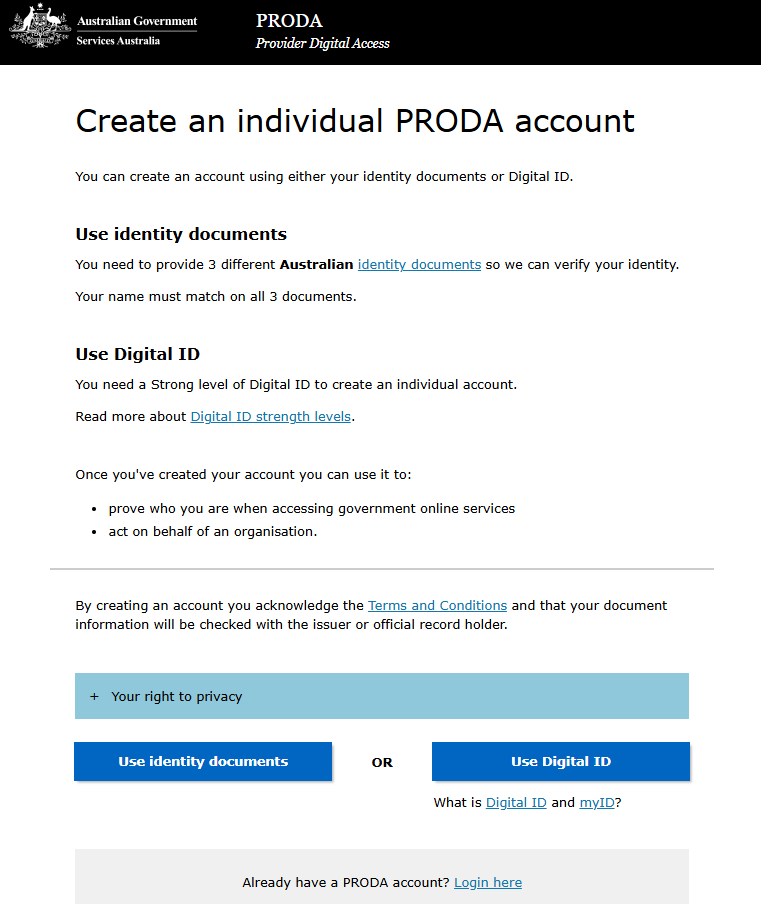
Create an individual PRODA account
Step 2
Register in PCA using your PRODA credentials. Note: you can register as a practitioner or a non-practitioner.
The following steps show registration for a non-practitioner.
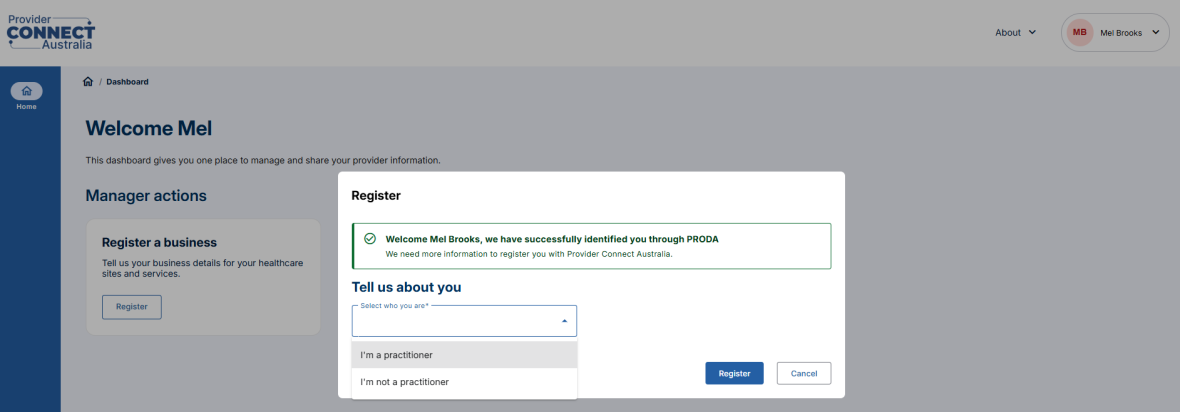
Step 3
Enter your details, read and accept the privacy collection notice.
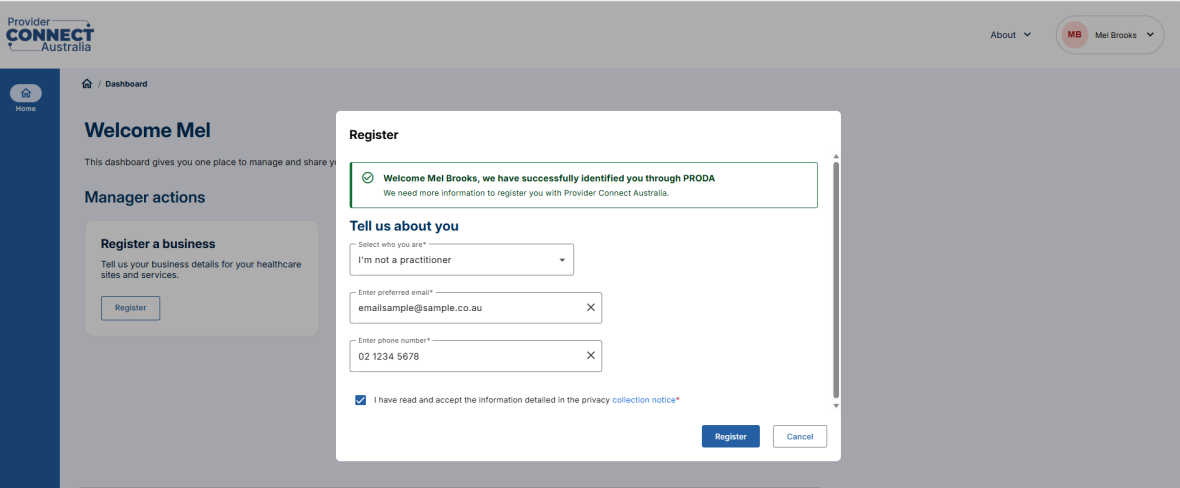
Step 4
You are now registered with PCA.
Request access from an existing PCA administrator/ practice manager to link your account to the organisation.
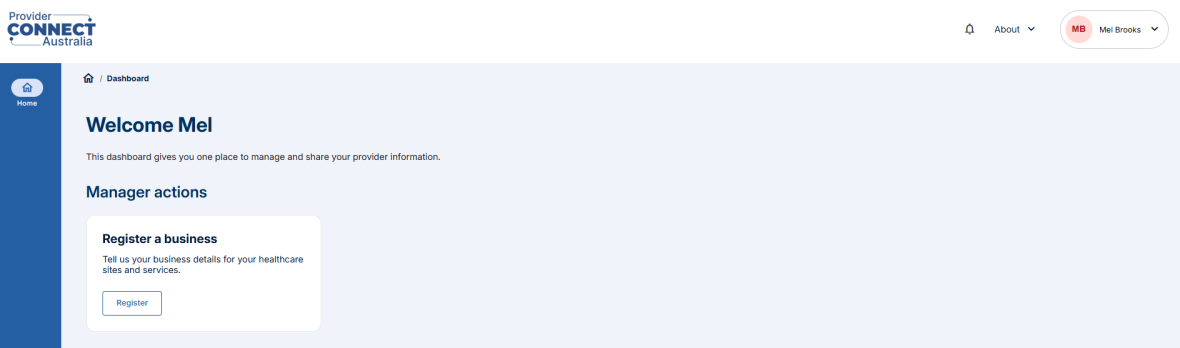
Step 5 (performed by existing practice manager)
Login to PCA portal.
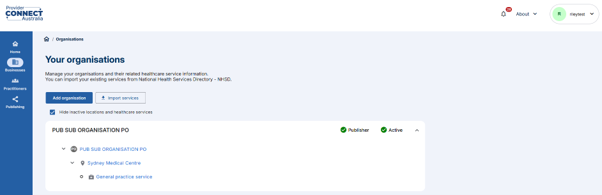
Step 6
Click on the organisation name next to PO icon then click on Users tab.
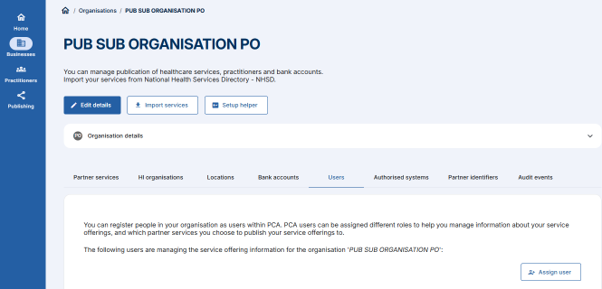
Step 7
Click on Assign user button. Enter the new practice manager’s PRODA (RA) number and last name, then click on Link user button.
(RA Number is found under Profile tab of PRODA opening screen)
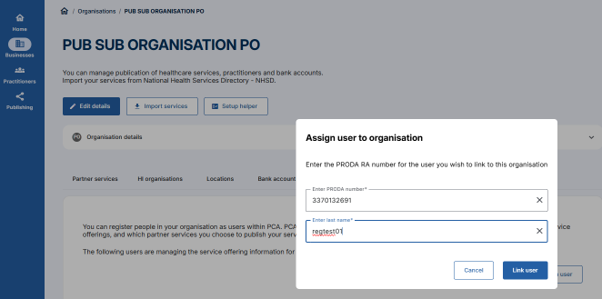
Step 8
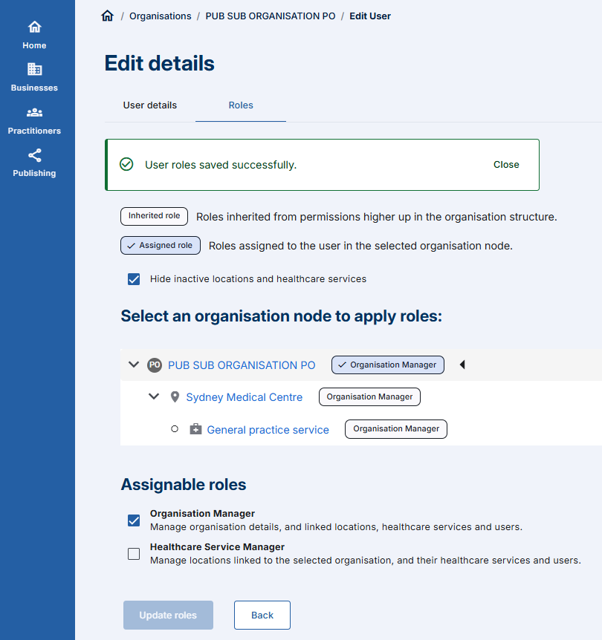
Click on the Roles tab. Assign the new practice manager either Organisation Manager or Healthcare Service Manager role. Click on Update roles button.
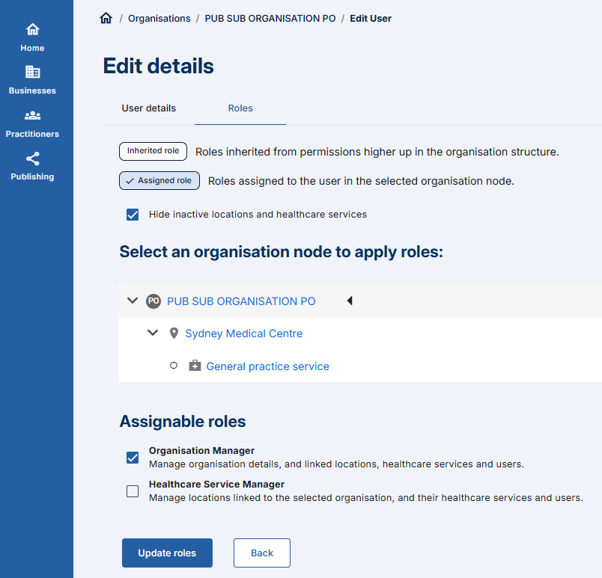
Step 9
New practice manager role is saved and linked to organisation.
Step 10 (performed by new practice manager)
Login to PCA portal. Verify access to organisation and role is correct.
Scenario 2. Existing practice manager needs to be off boarded from PCA
First a new practice manager needs to be onboarded to PCA – see scenario 1.
Secondly, the existing practice manager can now be off-boarded.
Step 1 (performed by new practice manager)
Login to PCA portal.
Step 2
Click on the organisation name next to PO icon then click on Users tab.
Step 3
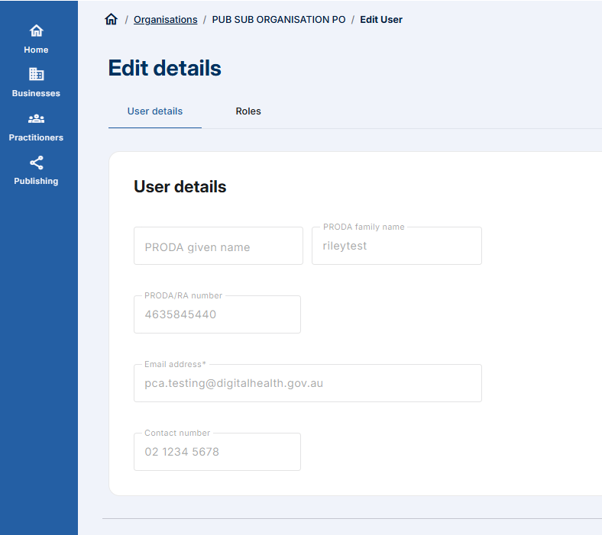
Click on the practice manager’s name being offboarded.
Step 4
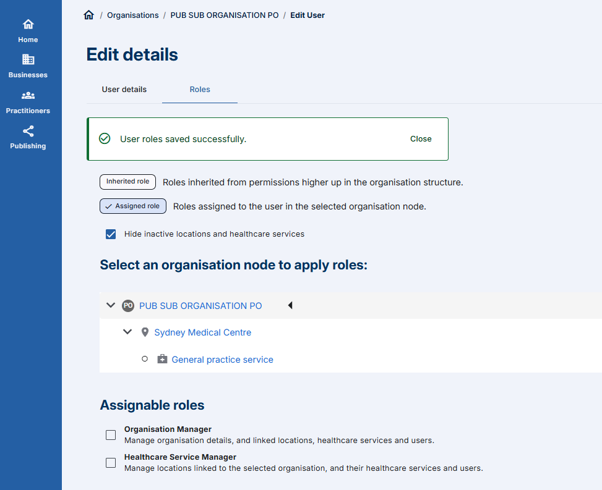
Click on the roles tab, then unselect the assigned role.
Step 5
Click on Update roles. User role is successfully saved. Existing practice manager is now offboarded.
Step 6
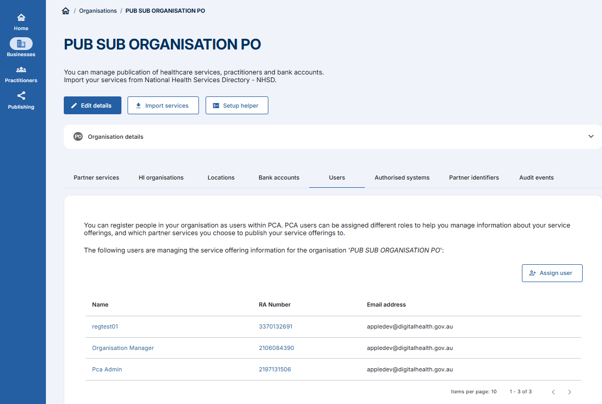
Click on the Users tab, existing practice manager no longer displays as a linked user.
Scenario 3. A new staff member requires access to PCA, but the original practice manager who setup PCA doesn’t work at the organisation anymore
Performed by new practice manager – Register and create PRODA account. Refer steps 1-4 of scenario1.
Step 5 (performed by new practice manager)
Ask an organisation authorised person to send an email to help@digitalhealth.gov.au to grant you PCA access and role to organisation.
| Legal entity structure | Authorised person |
|---|---|
| Company | Director or Secretary |
| Trust | Trustee |
| Sole trader | Proprietor or Sole trader |
| Partnership | Partner |
| Company trustee | Director or Secretary |
Email should include the following details.
- new practice manager PRODA (RA) number
- new practice manager full name
- Organisation name/s
- Organisation ABN/s
- Role (either Organisation manager or Healthcare service manager)
Step 6 (performed by an authorised person)
Sample email to be sent to Australian Digital Help Agency support team.
Subject: Action Required: Grant PCA Access and Role for New Practice Manager
Hi PCA support team,
Could you please grant the required PCA system access and assign the appropriate [Organisation/Healthcare Service Manager] role for the following new practice manager:
- New practice manager Name: [Full Name]
- PRODA (RA) number: [PRODA (RA) number]
- Organisation/s name: [Organisation Name]
- ABN/s: [ABN]
- Role: Organisation/Healthcare Service Manager
- Healthcare service/s name: [required if only healthcare service manager role is being assigned]
- Start Date: [Date, if applicable]
Please let me know once access has been provisioned, or if any additional information is required to proceed.
Thank you for your support.
Kind regards,
[Your Name]
[Your Job Title]
Step 7 (performed by Australian Digital Health Agency support team)
Verify if the person requesting the change is an authorised person. If so, action email request and grant PCA access and role to new practice manager.
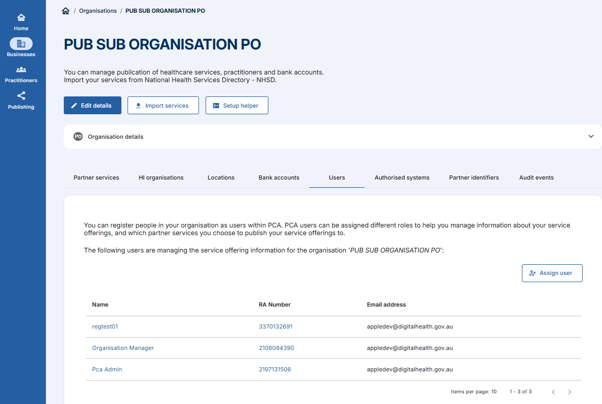
Click on the organisation name next to PO icon then click on Users tab.
Step 8
Click on Assign user button. Enter the new practice manager’s PRODA (RA) number and last name, then click on Link user button.
Step 9
Click on the Roles tab. Assign the new practice manager either Organisation Manager or Healthcare Service Manager role as per request. Click on Update roles button.
Step 10
New practice manager role is saved and linked to organisation.
Step 11
A confirmation email to the requestor/authorised person will be sent by the Agency, who should respond as soon as possible if anything is missing or not functioning correctly.
Step 12 (performed by new practice manager)
Login to PCA portal. Verify access to organisation and role is correct.